Use the seven-point scorecard to find the browser job that is actually costing you time.
Peak Productivity Field Guide
The 1-Click
Browser Productivity Kit
The browser tasks you repeat every week, and the exact free tool that handles each one in a single click.

Start with a seven-point setup score, fix the two biggest time-sinks, then add the one-click tool for each job. No giant reorganization required.
What This Fixes
Your browser does the same handful of jobs every day, and most of them can be one click.
The modern workday rarely breaks in one dramatic failure. It drains through small browser jobs done the slow way: a tab kept open as a reminder, a meeting with no decision trail, a screenshot with no caption, a downloads folder full of mystery files, a file that needs converting before you can send it. A few seconds each, every day, forever.
Each chapter gives a quick test, the one-click tool that fixes it, and a clear stopping point.
Tabs, screenshots, PDFs, notes, and meeting recaps get simple rules that make them usable later.
Tools are introduced only when the job repeats and the permission level makes sense.
The promise: in 15 minutes you will know which browser jobs are costing you time, and the exact one-click tool that handles each.
Contents
Use this as an audit, not a book
Start with the scorecard. Then jump to the two jobs that scored highest. Read the rest when that task shows up in your real work.
01Score Your Browser Setup
02Leak 1: Tab Debt
03Leak 2: Capture Loss
04Leak 3: Meeting Drift
05Leak 4: File and PDF Mess
06Leak 5: Writing Drag
07Leak 6: Permission Sprawl
08Leak 7: Focus Traps
09Tool Clutter
10The Seven-Day Reset
11When a Tool Actually Helps
12Your Final Score
APrintable Scorecard
BTool Rent Test
COne-Week Plan
CHAPTER 01
Score Your Browser Setup
Find the jobs Chrome is costing you time on before you install another fix.
Most browser cleanup fails because it starts with taste: prettier tabs, nicer new tab pages, another extension. This kit starts with cost. You score your setup first, then fix the two jobs that are actually draining your day.
Use the score before the advice.
Do not read this like a book. Read it like a checkup. Score the seven checks below, circle the two highest numbers, and ignore the rest until those two are fixed. One bad score usually needs one good rule. Five bad scores need a reset.
SCORECARD
Give yourself the points you actually earned
| Friction point | 0 points | 1 point | 2 points |
|---|---|---|---|
| Tab debt | Open tabs support one current task. | Some tabs are reminders. | Tabs are your memory system. |
| Capture loss | Saved items are named and findable. | Some saved items need context. | You often resave or re-search. |
| Meeting drift | Every meeting leaves decisions and owners. | Notes exist but actions are fuzzy. | Meetings vanish after the call. |
| File mess | Downloads are temporary and cleaned weekly. | Some files sit unnamed for days. | Downloads are your filing system. |
| Writing drag | Messages are clear before tools touch them. | You rewrite a few routine messages. | You rely on tools before knowing the point. |
| Permission sprawl | Extensions and site permissions are audited. | A few old permissions linger. | You cannot explain what has access. |
| Focus traps | New tabs and notifications are quiet. | Distractions appear but recover quickly. | The browser pulls you away by default. |
The score takes 15 minutes if you do not negotiate with it.
The point is not to reorganize your whole setup today. The point is to locate the recurring time-sink: any repeated browser job that makes you lose attention, lose evidence, redo work, or install yet another tool to compensate for a habit that was never designed.
- Open your current Chrome window exactly as it is.
- Score each leak from 0 to 2. Do not average. Use the worst recurring version.
- Circle the two highest scores.
- Jump to those two chapters and apply only the quick fix.
- Come back in seven days and score again.
What counts as a win.
A win is not a perfect setup. A win is one repeated annoyance becoming boring. You stop hunting for the same tab. You stop asking where the meeting action item went. You stop saving screenshots that mean nothing next week. You stop letting old extensions keep access they no longer deserve.
Before
A vague cleanup goal
I should organize Chrome sometime.
After
A measurable repair
My tab debt is 2. I will cap active tabs and move read-later links out of the tab bar today.
Visual tool map
Use the image once, then use the tool only when the leak repeats
These are the broad repair options in the Peak Productivity stack. The chapters below refer back to this map instead of repeating large screenshots.
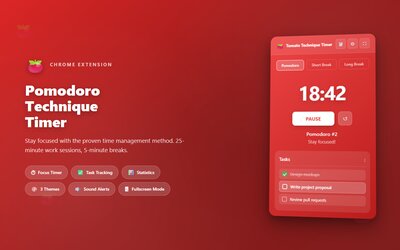 Pomodoro Timer
Start a visible focus block instead of negotiating with yourself for another hour.
Pomodoro Timer
Start a visible focus block instead of negotiating with yourself for another hour.
 Aurovia New Tab
Turn the new tab screen into a task surface, not a launchpad for distraction.
Aurovia New Tab
Turn the new tab screen into a task surface, not a launchpad for distraction.
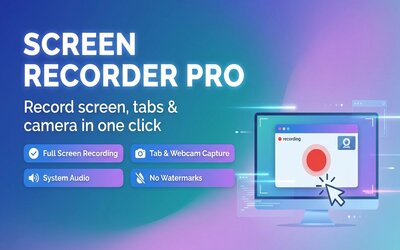 Screen Recorder Pro
Record a bug, walkthrough, or process once so nobody has to guess what happened.
Screen Recorder Pro
Record a bug, walkthrough, or process once so nobody has to guess what happened.
 MeetMint
Turn calls into notes, owners, and follow-up actions while the meeting is still fresh.
MeetMint
Turn calls into notes, owners, and follow-up actions while the meeting is still fresh.
 Tab Session Manager
Save a real project session and restore it when that project comes back.
Tab Session Manager
Save a real project session and restore it when that project comes back.
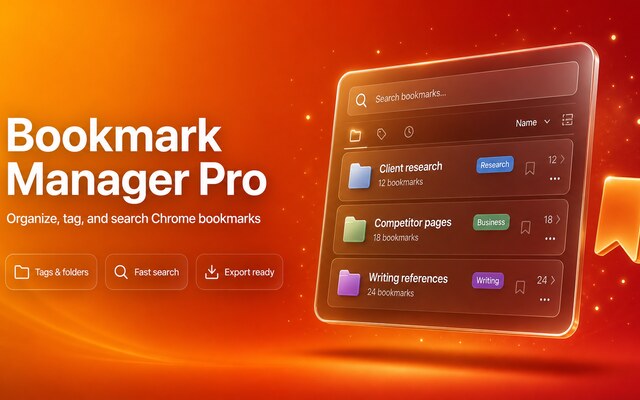 Bookmark Manager Pro
Give long-lived links a home with labels, folders, and a reason to exist.
Bookmark Manager Pro
Give long-lived links a home with labels, folders, and a reason to exist.
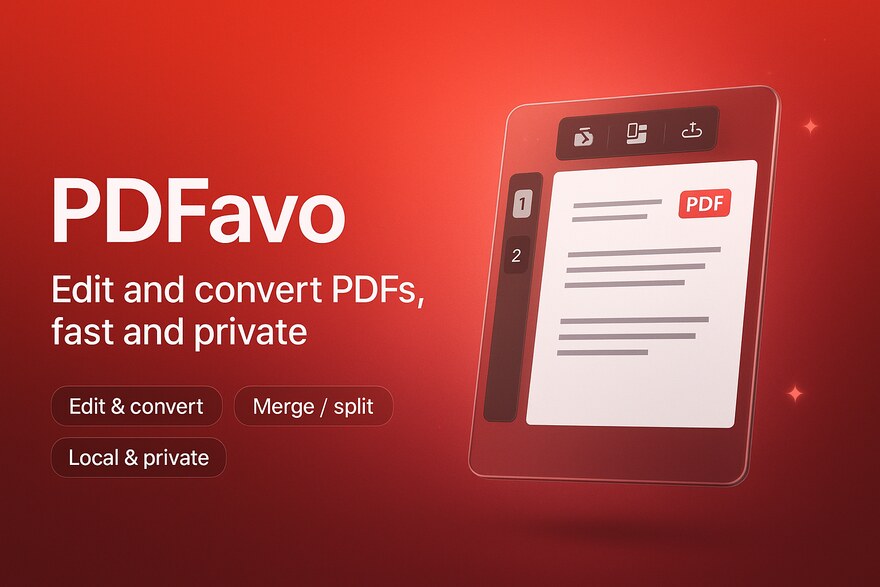 PDFavo
Clean up light PDF work without uploading private files to random converter sites.
PDFavo
Clean up light PDF work without uploading private files to random converter sites.
 PDF Merge & Split
Merge, split, and rearrange routine PDFs without opening a heavy desktop app.
PDF Merge & Split
Merge, split, and rearrange routine PDFs without opening a heavy desktop app.
 WebP to JPG/PNG
Convert web images into formats your next tool actually accepts.
WebP to JPG/PNG
Convert web images into formats your next tool actually accepts.
 HEIC to JPG Converter
Turn phone photos into shareable JPGs without a file-format detour.
HEIC to JPG Converter
Turn phone photos into shareable JPGs without a file-format detour.
 AI Rewrite Paragraph
Generate tone variants after you know the point of the message.
AI Rewrite Paragraph
Generate tone variants after you know the point of the message.
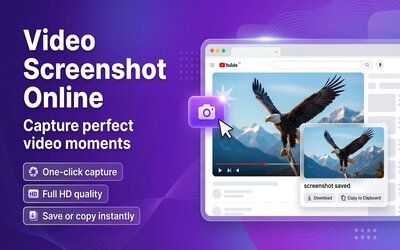 Video Screenshot
Capture the one useful video frame instead of saving a whole clip.
Video Screenshot
Capture the one useful video frame instead of saving a whole clip.
 YouTube Looper Pro
Loop the exact training clip, language phrase, or tutorial segment you need to repeat.
YouTube Looper Pro
Loop the exact training clip, language phrase, or tutorial segment you need to repeat.
 Clear Cache for Site
Clear one broken site without wiping your whole browser state.
Clear Cache for Site
Clear one broken site without wiping your whole browser state.
The output of the audit is not insight. It is a repair order.
At the end of the first pass, write one line for each high-scoring leak. The line should say what breaks, when it breaks, and what you will change this week.
Repair order examples
Turn vague friction into a concrete fix
| Bad note | Useful repair order |
|---|---|
| Too many tabs. | Project research leaks into read-later. Move non-current links into bookmarks with a reason before 17:00. |
| Meetings are messy. | Client calls lose owners. Send a four-line recap within ten minutes of the call. |
| Files are everywhere. | Downloads holds finished work. Clear it every Friday and rename anything kept longer than one day. |
CHAPTER 02
Leak 1: Tab Debt
Tabs are work surfaces. They become expensive when they turn into reminders.
A tab is useful when it belongs to the task in front of you. It becomes debt when it exists because you are afraid to close it. The browser cannot tell the difference, so you need a rule that does.
Quick test: count active tabs, then name their job.
Open every Chrome window and count tabs. Then ask what each tab is doing. It gets one of four jobs: act now, reference now, waiting for a result, or parked for the next work block. Anything else is not a tab job.
Diagnostic
Score tab debt
| 0 points | Fewer than nine active tabs, each tied to current work. |
| 1 point | Ten to twenty tabs, with some reminders mixed in. |
| 2 points | More than twenty tabs, duplicate tabs, or tabs used as read-later storage. |
Fix: remove reminder tabs from the tab bar.
The tab bar is for work in progress. It is not a memory palace. If a link matters later, it needs a saved place with context: a project note, a session, a reading queue, or a bookmark with a reason.
- Close every duplicate tab immediately.
- Move articles and references you will not use in the next 90 minutes to a read-later place.
- Group remaining tabs by deliverable, not by category.
- Rename groups after the output: "May invoice page," not "research."
- End each work block by closing tabs that produced no output.
Before
Tab as anxiety
Twelve tabs stay open because one of them might be important.
After
Tab as workspace
Four tabs stay open because they are needed for the next deliverable.
Practical move
Use the 90-minute tab rule
- If you will not use a tab in the next 90 minutes, it cannot stay in the active tab bar.
- If it is reading material, move it to a read-later place with one sentence about why it matters.
- If it belongs to a project, save it in the project note or a named tab session.
- If you cannot name the next action, close it. Search can find it again.
Keep a parking-lot note next to the work.
Most tab debt exists because the browser has no trusted parking lot. Create one note per active project with three sections: current tabs, later links, and questions. The tab bar then holds work, not fear.
Template
Project parking lot note
| Current tabs | Only what I need for the next deliverable. |
| Later links | Links with one-line reasons. |
| Questions | Things I still need to decide or verify. |
Recommended repair kit
Tab debt repair kit
Use these when tabs repeat across projects, new tabs pull you away from work, or saved links need a better home than the tab bar.
- Aurovia New TabTurn the new tab screen into a task surface, not a launchpad for distraction.
- Tab Session ManagerSave a real project session and restore it when that project comes back.
- Bookmark Manager ProGive long-lived links a home with labels, folders, and a reason to exist.
CHAPTER 03
Leak 2: Capture Loss
Saving something is not the same as being able to use it later.
Capture loss shows up as repeated searching. You know you saw the thing. You know you saved something. You cannot find the useful version, or the saved version has no context. Good capture is not fancy. It preserves the future job.
Quick test: find one thing you saved last week.
Pick a real saved item from last week: screenshot, PDF, link, quote, recording, or note. Give yourself two minutes to find it and explain why you saved it. If you cannot, the capture failed even if the file exists.
Diagnostic
Score capture loss
| 0 points | Saved items have names, dates, and enough context to reuse. |
| 1 point | You can usually find the file, but the reason is sometimes unclear. |
| 2 points | You often re-search, resave, or ask "where did I put that?" |
Fix: choose the format based on the future task.
Bad archives come from saving the wrong artifact. A screenshot preserves appearance. A PDF preserves a page for sharing or offline reading. A bookmark returns you to a live page. A note preserves an idea you plan to reuse.
Decision table
Pick the right capture
| Future need | Best capture | Minimum context |
|---|---|---|
| Show how something looked | Screenshot | Page name and date. |
| Explain a process | Screen recording | What happened and why it matters. |
| Read or share a static page | Source URL and title. | |
| Return to a living page | Bookmark | Project name and reason. |
| Reuse an argument | Text note | Claim, source, and your take. |
The caption is the asset.
Most people capture the image and skip the sentence. The sentence is what makes the capture valuable later. Use this naming pattern: topic, source, date, reason. Example: "Stripe checkout error, support ticket 431, May 14, needs refund follow-up."
Before
Screenshot without context
A PNG named screenshot-102213.png.
After
Evidence you can use
checkout-error-ticket-431-2026-05-14.png, with a note saying what decision it supports.
Copy this
A capture caption that is actually useful
What this shows: the checkout error after choosing yearly.
Where it came from: support ticket 431, user recording, May 14.
Why I saved it: prove the redirect bug before changing pricing logic.
Next action: attach to the fix note and delete after deployment verification.
Naming formula
Use this for screenshots, PDFs, clips, and exports
| Part | Example | Why it exists |
|---|---|---|
| Subject | checkout-error | What the item is about. |
| Source | ticket-431 | Where it came from. |
| Date | 2026-05-14 | When it was true. |
| Use | pricing-fix | Why you kept it. |
Recommended repair kit
Capture repair kit
Use the browser for one-off captures. Use dedicated tools when the same capture job keeps coming back: walkthroughs, video frames, lightweight PDF cleanup, and evidence you need to share.
- Screen Recorder ProRecord a bug, walkthrough, or process once so nobody has to guess what happened.
- Video ScreenshotCapture the one useful video frame instead of saving a whole clip.
- PDFavoClean up light PDF work without uploading private files to random converter sites.
CHAPTER 04
Leak 3: Meeting Drift
Meetings are only useful if decisions survive the call.
Meeting drift is the gap between a conversation that felt productive and a workday where nobody can name the decision, owner, or next date. The browser makes this worse because the meeting, calendar, doc, chat, and transcript live in different tabs.
Quick test: summarize yesterday's most important meeting.
Without opening notes, write three lines: decision, owner, next date. If you cannot, the meeting may have produced conversation but not operational memory.
Diagnostic
Score meeting drift
| 0 points | Meetings end with decisions, owners, and dates. |
| 1 point | Notes exist, but actions require interpretation. |
| 2 points | People leave with different memories of what happened. |
Fix: write the recap before writing the notes.
Long notes are useful only after the decision trail is safe. Start with four lines. If the four lines are weak, the notes will not rescue the meeting.
Template
Four-line meeting recap
| Decision | What changed because this meeting happened? |
| Owner | Who is responsible for the next visible action? |
| Date | When does the next action need to be visible? |
| Open question | What is still unresolved? |
Use transcripts as raw material, not as the deliverable.
A transcript is evidence. It is not a recap. The useful output is a short decision trail that links back to the transcript only when detail is needed. If your meeting notes are longer than the meeting was important, they will not be read.
Before
Meeting note pile
A transcript, chat log, and doc link sit in three tabs.
After
Decision trail
Decision, owner, date, and one link to supporting notes.
Copy this
The follow-up note that prevents meeting drift
Decision: We will ship the pricing fix before changing ad budgets.
Owner: Alex owns the server patch. Maya owns the checkout smoke test.
Due: Today by 17:00.
Open question: Do we keep the old yearly link alive for grandfathered users?
Practical move
Run this during the last three minutes of the call
- Ask: what decision did we make that was not true before this call?
- Ask: who owns the next visible action?
- Ask: when will the rest of us see proof that it happened?
- Write those three answers in chat before people leave.
Best fit for this leak
MeetMint belongs where meetings create work but lose the trail
If the meeting itself is unnecessary, cancel it. If the meeting matters and follow-through is the bottleneck, MeetMint gives the call a searchable decision trail, owners, and next actions.
Open MeetMintCHAPTER 05
Leak 4: File and PDF Mess
Small file jobs become expensive when the browser turns into a filing cabinet.
Chrome is good at light document work. It is bad at becoming your file system. The leak starts when downloads, screenshots, merged PDFs, converted images, and unnamed exports all land in the same pile.
Quick test: sort Downloads by date.
Look at the last 30 files. How many have names you understand? How many are duplicates? How many are finished work that should have moved somewhere else?
Diagnostic
Score file mess
| 0 points | Downloads are cleared or moved weekly. |
| 1 point | Files pile up but are still recoverable. |
| 2 points | Downloads are your default filing system. |
Fix: give downloads a short life.
The Downloads folder should be a landing strip, not storage. A file gets used, renamed, moved, or deleted. If it remains unnamed after a week, it probably has no owner.
- Sort Downloads by date.
- Delete duplicate exports and installers.
- Rename the five most recent files you actually need.
- Move finished work into the real project folder.
- Create one weekly reminder: clear Downloads on Friday.
Convert only when the next step is clear.
PDFs and image conversions are useful when they reduce friction for a real task. They become clutter when you convert first and decide later.
Decision table
Use the browser for light document jobs
| Job | Browser is fine | Use a dedicated app when |
|---|---|---|
| Merge two PDFs | One quick shareable file. | You need review, redaction, or legal archive controls. |
| Split a PDF | Extract a few pages. | You need batch rules or compliance logging. |
| Convert WebP or HEIC | Make an image usable in another tool. | You need color-managed production assets. |
| Compress a file | Fit an upload limit. | Quality, metadata, or provenance matters. |
Practical move
Friday Downloads cleanup in 12 minutes
- Minute 0 to 3: delete installers, duplicate exports, and files named download or final-final.
- Minute 3 to 7: rename the five files you actually need using subject, source, date, and use.
- Minute 7 to 10: move finished work into the project folder where it belongs.
- Minute 10 to 12: leave only files that still need action this week.
Treat conversion as a custody decision.
Every converter has a trust cost. The boring rule is the right one: public assets can use quick browser tools; private contracts, IDs, payroll, medical, legal, and client-confidential files need a controlled app or a local workflow.
Privacy ladder
Choose the safest conversion path
| File type | Allowed path | Do not use |
|---|---|---|
| Public image or blog asset | Browser converter is fine. | None, if the source is public. |
| Client screenshot | Trusted tool or local workflow. | Random upload sites. |
| Contract, invoice, ID, payroll | Controlled desktop or approved system. | Any unknown web converter. |
Recommended repair kit
File and PDF repair kit
These tools make sense when they replace repeated trips to random converter sites. They do not turn Chrome into your file system, and they should not be used for confidential documents you would not upload elsewhere.
- PDFavoClean up light PDF work without uploading private files to random converter sites.
- PDF Merge & SplitMerge, split, and rearrange routine PDFs without opening a heavy desktop app.
- WebP to JPG/PNGConvert web images into formats your next tool actually accepts.
- HEIC to JPG ConverterTurn phone photos into shareable JPGs without a file-format detour.
CHAPTER 06
Leak 5: Writing Drag
Most browser writing is small, visible, and easy to make worse.
Email replies, support notes, form fields, comments, captions, reviews, and ticket updates are not literary work. They need to be clear, accurate, and hard to misread. Writing tools help only after the point is already known.
Quick test: find the message you edited five times.
Open the last browser message that took longer than it should have. Was the hard part grammar, tone, structure, or not knowing what you wanted the reader to do?
Diagnostic
Score writing drag
| 0 points | You can state the point before polishing. |
| 1 point | You rewrite routine messages more than needed. |
| 2 points | You ask a tool to fix unclear thinking. |
Fix: write the job line first.
Before editing tone, write one sentence that says what the message must do. "Ask for approval." "Explain the delay." "Reject the request politely." "Summarize the bug." The job line keeps the rewrite tool from making a polished message that still fails.
Before
Polished but weak
Just checking in to see if you maybe had any thoughts on this.
After
Clear and usable
Can you approve the attached draft by Friday at 14:00? If not, I will move it to Monday.
Use a three-pass edit for important messages.
First pass: point. Second pass: evidence. Third pass: tone. Most people reverse the order and spend ten minutes making a vague message sound friendlier.
- Write the action you want the reader to take.
- Add only the facts needed to make that action reasonable.
- Remove apologies, throat-clearing, and duplicate qualifiers.
- Adjust tone after the message already works.
- Read the first and last sentence. They should agree.
Message patterns
Use the pattern before using the tool
| Job | First sentence | Last sentence |
|---|---|---|
| Ask for approval | Can you approve the attached version by Friday? | If I do not hear back, I will hold the release. |
| Reject a request | I cannot take this on this week. | The earliest realistic slot is next Tuesday. |
| Explain a delay | The checkout fix is delayed because the attribution bug touches two endpoints. | I will send the verified patch link by 16:00. |
| Summarize a bug | The yearly checkout is routing the wrong price for US users with BD metadata. | The next step is a server-side pricing guard. |
Copy this
Rewrite prompt for browser text fields
Rewrite this for clarity, but keep the meaning and do not add claims.
Audience: [who will read it].
Goal: [what I need them to do].
Tone: direct, calm, and specific.
Do not make it longer unless a missing fact is necessary.
Best fit for this leak
AI Rewrite Paragraph is for variants after the point is clear
The tool is useful when you already know what the message needs to do and want cleaner tone options. It is not a substitute for deciding the point, evidence, and ask.
Open AI Rewrite ParagraphCHAPTER 07
Leak 6: Permission Sprawl
Old access is quiet risk. You notice it only when something goes wrong.
Permissions are boring until they are not. Chrome sites and extensions ask for camera, microphone, notifications, location, clipboard, and page access. The real issue is not that permissions exist. The issue is that old permissions keep living after the job is gone.
Quick test: audit four permission surfaces.
Open Chrome settings and review notifications, camera, microphone, and location. Then open chrome://extensions and click Details on the extensions you forgot you had. If you cannot explain why something has access, it does not get a free pass.
Diagnostic
Score permission sprawl
| 0 points | Permissions are current and explainable. |
| 1 point | A few old sites or extensions still have access. |
| 2 points | You cannot explain what has access or why. |
Fix: remove access by default, re-grant when needed.
Most permissions are easier to re-grant than to monitor forever. Notifications are the worst offender because they interrupt work long after the original reason disappeared.
- Open chrome://settings/content/notifications and remove sites you do not actively need.
- Review camera and microphone permissions for meeting sites, then remove old one-off sites.
- Review location access and remove anything that does not need local results.
- Open chrome://extensions and inspect broad permissions.
- Disable unknown extensions for seven days before removing them.
Use exact paths instead of hunting through settings.
Chrome moves labels around, but these internal pages stay easy to open. Paste each one into the address bar during the audit.
Chrome paths
Open these directly
| Surface | Path | What to remove |
|---|---|---|
| Extensions | chrome://extensions | Unknown, dormant, or overbroad tools. |
| Notifications | chrome://settings/content/notifications | Sites that interrupt without protecting urgent work. |
| Camera | chrome://settings/content/camera | Old one-off meeting or testing sites. |
| Microphone | chrome://settings/content/microphone | Anything not used for calls, recording, or dictation. |
| Location | chrome://settings/content/location | Sites that do not need local results. |
Broad permission is not automatically bad. Unexplained permission is.
Some useful extensions need page access to do their job. The decision is not "all permissions are dangerous." The decision is whether the permission matches a recurring job you understand.
Rules
Permission rules that survive contact with real work
- If you do not know what the extension does, disable it.
- If the job happened once, remove the permission after the job.
- If a site abuses notifications, block it permanently.
- If an extension reads page content, know exactly why.
- If a tool feels useful but not necessary, disable it for seven days.
CHAPTER 08
Leak 7: Focus Traps
The browser does not need to be hostile. It just needs fewer chances to redirect you.
Focus is usually lost in small transitions: opening a new tab, checking a notification, switching accounts, looking for a file, or recovering from a context switch. The fix is not heroic self-control. The fix is fewer traps.
Quick test: open a new tab and watch what happens.
Open a new tab without a plan. What pulls your eye first? Search suggestions, shortcuts, news, bookmarks, recently visited sites, or nothing? Your new tab page is either a work surface or a temptation surface.
Diagnostic
Score focus traps
| 0 points | New tabs, notifications, and shortcuts support current work. |
| 1 point | Distractions appear, but you recover quickly. |
| 2 points | The browser regularly pulls you into unrelated work. |
Fix: make the first screen boring.
The first screen should answer one question: what am I doing next? If it answers "look at these other things," it is not a productivity surface.
- Remove news, recommendation feeds, and shortcuts that do not serve current work.
- Keep one capture place visible: task list, project note, or daily plan.
- Turn off browser notifications except for genuinely urgent work channels.
- Use one timer or work-block cue when you need a boundary.
- Close social, video, or shopping tabs before starting a focus block.
Timers work when the task is named.
A timer attached to "focus" is weak. A timer attached to "draft refund email" or "fix checkout redirect" is useful. The task gives the timer a finish line.
Before
Generic focus attempt
Start timer, then decide what to do.
After
Named work block
25 minutes: write the first draft of the client reply.
Copy this
A focus block that has a finish line
Output: one tested checkout redirect patch.
Open tabs: server route, Stripe price map, live preview, notes.
Closed tabs: inbox, analytics dashboard, unrelated docs.
Stop condition: live preview returns the correct price or the blocker is written down.
Practical move
The two-minute rescue when focus breaks
- Write the exact tab that pulled you away.
- Close the tab if it does not support the current output.
- Write the next physical action: open route file, run test, reply to email.
- Restart with a 10-minute timer, not a 25-minute timer.
Recommended repair kit
Focus repair kit
These tools work best as boundaries: a named focus block, a quieter new tab surface, or a deliberate practice loop. They do not replace the decision to start.
- Pomodoro TimerStart a visible focus block instead of negotiating with yourself for another hour.
- Aurovia New TabTurn the new tab screen into a task surface, not a launchpad for distraction.
- YouTube Looper ProLoop the exact training clip, language phrase, or tutorial segment you need to repeat.
CHAPTER 09
Tool Clutter
A tool should remove a recurring detour. Otherwise it becomes another thing to manage.
The worst browser setup is not tool-free. It is tool-heavy without rules. Every extension should have a job, a permission level you understand, and a reason to stay enabled next month.
Quick test: explain each enabled extension in one sentence.
Open chrome://extensions. For each enabled extension, complete this sentence: "This stays enabled because it helps me..." If the sentence is vague, the extension is a candidate for disabling.
Decision check
The extension rent test
| Question | Keep when | Disable when |
|---|---|---|
| Does it handle a recurring job? | The job happens weekly. | The job happened once. |
| Do you understand the permission? | The permission matches the job. | You cannot explain the access. |
| Does it reduce steps? | It replaces a repeated detour. | It adds a dashboard you avoid. |
| Would you miss it in seven days? | You would notice the loss. | You forgot it existed. |
Fix: use a thirty-day review, not a permanent collection.
The browser is not a museum for tools you once needed. A monthly review keeps useful tools visible and removes the silent pileup.
- Disable dormant extensions for seven days.
- Remove unknown extensions after confirming they are not required.
- Keep a short note with each extension job.
- Review broad permissions monthly.
- Replace random converter sites with a trusted tool only when the job repeats.
Practical move
Install with an exit condition
- Write the job before installing: this handles repeated screen recording for support tickets.
- Write the review date: if I have not used it by June 14, disable it.
- Write the permission reason: it needs tab access because it captures the current tab.
- After seven days, decide keep, disable, or remove. Do not let maybe become permanent.
Thirty-day lease
Give every new extension a review date
| Field | Example |
|---|---|
| Extension | Screen Recorder Pro |
| Job | Record support walkthroughs and bugs. |
| Expected use | At least twice this month. |
| Permission reason | Needs tab capture for the current page. |
| Review date | June 14. |
| Keep condition | It replaced at least two written explanations. |
A good browser setup is a small workbench, not a pile.
A clean setup has fewer tools than a messy one, but each tool has a clearer job. If one leak appears once, use the native browser feature. If the same leak appears every week, a dedicated tool may be worth the permission, toolbar space, and attention cost.
Recommended repair kit
Use tools after the leak is proven
A tool is justified when it handles a recurring job you can name. If you cannot name the leak, the tool will probably become another thing to audit later.
- Clear Cache for SiteClear one broken site without wiping your whole browser state.
- PDFavoClean up light PDF work without uploading private files to random converter sites.
- Bookmark Manager ProGive long-lived links a home with labels, folders, and a reason to exist.
CHAPTER 10
The Seven-Day Reset
Do one small repair each day. Do not redesign your whole browser at once.
The fastest way to fail a cleanup is to make it philosophical. This reset is deliberately small. Each day has one visible action, one stopping point, and one test of whether the browser feels less expensive.
Day by day plan.
Use this after scoring the audit. If you already know the two worst leaks, start there. If the whole browser feels noisy, follow the sequence below.
Reset calendar
Seven actions, seven days
| Day | Action | Done when |
|---|---|---|
| 1 | Score the seven leaks. | Two highest leaks are circled. |
| 2 | Move read-later material out of tabs. | Active tabs support current work. |
| 3 | Caption five important saved items. | Each item has source and reason. |
| 4 | Use the four-line meeting recap. | Decision, owner, date, open question exist. |
| 5 | Clear Downloads. | Files are renamed, moved, or deleted. |
| 6 | Audit permissions and extensions. | Unknown access is removed or disabled. |
| 7 | Make the new tab screen boring. | The next task is more visible than temptation. |
Keep a tiny log.
The log exists to prevent false progress. One sentence per day is enough: "Today I removed 11 read-later tabs and saved 4 links with reasons." If you cannot name what changed, nothing changed.
Rules
Reset log prompts
- What did I remove?
- What did I make easier to find?
- What recurring job got a clearer rule?
- What tool did I disable or justify?
- What will I notice tomorrow?
Stop when the browser is quieter.
Do not turn the reset into a hobby. The goal is less drag during work, not a perfect system. When the two worst leaks drop by one point each, the audit did its job. Re-run it monthly or after a major workflow change.
CHAPTER 11
When a Tool Actually Helps
Native Chrome features are enough for one-off jobs. Repeated leaks deserve better shortcuts.
Tools are useful when they remove repeated detours. They are expensive when they add permissions, dashboards, and maintenance without solving a recurring job. This chapter turns the score into a tool decision without turning the browser into a pile.
Start with the native fix.
Chrome already handles more than people use: tab search, profiles, site permissions, bookmarks, download cleanup, print-to-PDF, and basic screenshot workflows. Use those first when the job is rare. A one-off problem does not deserve permanent toolbar space.
Decision table
Native first, tool second
| Leak | Native first | Tool when |
|---|---|---|
| Tab debt | Tab search, groups, bookmarks. | Project tab sets need to survive restarts. |
| Capture loss | Screenshot, print-to-PDF, bookmarks. | You repeatedly document bugs, flows, or evidence. |
| Meeting drift | Calendar notes and a four-line recap. | Meetings regularly need transcripts and searchable follow-up. |
| File mess | Downloads cleanup and native PDF viewer. | Conversion, merge, split, or cleanup happens every week. |
| Writing drag | Job line, three-pass edit, browser spellcheck. | Routine messages need tone variants or grammar checks. |
| Focus traps | Quiet new tab, notification cleanup. | You need visible work blocks or a cleaner start screen. |
Use the permission trade.
A tool is never free just because it costs no money. It asks for attention, permission, trust, and maintenance. That trade can be worth it, but only when the tool replaces a real recurring detour.
Permission trade
Ask these four questions
| Job | What recurring job does this handle? |
| Frequency | How often did the job happen last month? |
| Access | What can the tool read or change? |
| Exit | What would tell you to disable it? |
A curated bundle only makes sense after the audit.
If your score is low, keep Chrome light. If your score is high because several leaks repeat every week, a curated set of tools can be useful because the jobs are already proven. The right pitch is not "install everything." The right pitch is "you now know which jobs deserve a shortcut."
Before
Bad reason to install
This tool might be useful someday.
After
Good reason to install
This handles the capture, file, meeting, or focus leak I scored today.
Recommended repair kit
Where Peak Productivity fits
The bundle is strongest when several scored leaks are recurring: focus, capture, meetings, writing, file cleanup, tab sessions, and tool hygiene. The right outcome is not more extensions. The right outcome is fewer repeated browser detours.
- Pomodoro TimerStart a visible focus block instead of negotiating with yourself for another hour.
- Screen Recorder ProRecord a bug, walkthrough, or process once so nobody has to guess what happened.
- MeetMintTurn calls into notes, owners, and follow-up actions while the meeting is still fresh.
- PDFavoClean up light PDF work without uploading private files to random converter sites.
CHAPTER 12
Your Final Score
Leave with one number, two repairs, and a rule for what gets installed next.
The setup score is useful only if it ends with a decision. Total the score, choose the next two repairs, and decide what kind of browser you are willing to maintain.
Add the points.
Use the same seven checks you scored at the start. Do not adjust the numbers to make yourself feel better. The score is not a grade. It is a map.
Choose the two repairs.
Your next action should be small enough to finish today. If your worst score is tab debt, do not redesign your entire research system. Move read-later links out of the tab bar. If your worst score is permission sprawl, do not evaluate every extension in the store. Disable unknown extensions and remove old notification access.
Action plan
Write this down
| My score | ____ / 14 |
| Worst friction point | ________________________ |
| First repair today | ________________________ |
| Second repair this week | ________________________ |
| Tool I will disable or justify | ________________________ |
Install nothing unless it passes the rent test.
The browser gets better when tools have jobs. It gets worse when tools become souvenirs from old problems. Before installing anything new, write the recurring job in one sentence. If the sentence sounds weak, you do not need the tool.
Rules
Final install rule
- Native feature first for one-off jobs.
- Dedicated tool only when the job repeats.
- Permission must match the job.
- Disable any tool you cannot explain.
- Review the score again in 30 days.
APPENDIX A
Printable Scorecard
One page to rerun the audit without rereading the guide.
Use this page monthly or whenever your browser starts feeling expensive again.
SCORECARD
Give yourself the points you actually earned
| Leak | 0 points | 1 point | 2 points |
|---|---|---|---|
| Tab debt | Open tabs support one current task. | Some tabs are reminders. | Tabs are your memory system. |
| Capture loss | Saved items are named and findable. | Some saved items need context. | You often resave or re-search. |
| Meeting drift | Every meeting leaves decisions and owners. | Notes exist but actions are fuzzy. | Meetings vanish after the call. |
| File mess | Downloads are temporary and cleaned weekly. | Some files sit unnamed for days. | Downloads are your filing system. |
| Writing drag | Messages are clear before tools touch them. | You rewrite a few routine messages. | You rely on tools before knowing the point. |
| Permission sprawl | Extensions and site permissions are audited. | A few old permissions linger. | You cannot explain what has access. |
| Focus traps | New tabs and notifications are quiet. | Distractions appear but recover quickly. | The browser pulls you away by default. |
Monthly note
What changed since last score?
| Date | ________________________ |
| Total score | ____ / 14 |
| Worst leak | ________________________ |
| Repair made | ________________________ |
| Tool removed or justified | ________________________ |
APPENDIX B
Tool Rent Test
A short test for every extension before it stays enabled.
A tool earns space in Chrome when it handles a recurring job, reduces steps, and uses permissions you understand.
Decision table
Keep, disable, or remove
| Situation | Decision | Reason |
|---|---|---|
| Used this week, job clear, permission clear. | Keep. | It is active equipment. |
| Useful monthly, safe permission, no page access. | Keep or disable until needed. | Low cost, occasional value. |
| Used once for a past task. | Disable. | One-off need is not a permanent install. |
| Unknown job or unknown permission. | Remove. | Unexplained access is not worth keeping. |
| Replaces random converter sites every week. | Keep. | Trusted repetition beats repeated one-off uploads. |
Rules
The one-sentence test
- This tool stays enabled because it helps me...
- The job happens...
- The permission makes sense because...
- I would notice losing it when...
APPENDIX C
One-Week Plan
A compact version of the reset for people who will not reread the chapters.
Do one repair per day. Stop when the action is complete. The browser gets quieter through finished repairs, not through long planning sessions.
Seven-day plan
One action per day
| Day | Repair | Time box |
|---|---|---|
| 1 | Score the seven leaks. | 15 minutes. |
| 2 | Move read-later tabs out of the tab bar. | 20 minutes. |
| 3 | Caption five saved items. | 15 minutes. |
| 4 | Use the four-line meeting recap. | 5 minutes after a meeting. |
| 5 | Clear Downloads. | 20 minutes. |
| 6 | Remove old permissions and unknown extensions. | 20 minutes. |
| 7 | Make the new tab screen boring. | 15 minutes. |