100% local ยท your code never uploads

Catch the rejection reasons before Google's reviewers do

Drop your extension .zip into CWS Submission Copilot and get a full pre-submit report: policy code violations, unused permissions, remote code, keyword stuffing, and missing files. All analyzed right in your browser. Nothing uploaded.

Full scan, report, and per-finding fix guidance free forever. Pro adds batch, history, and the listing optimizer.
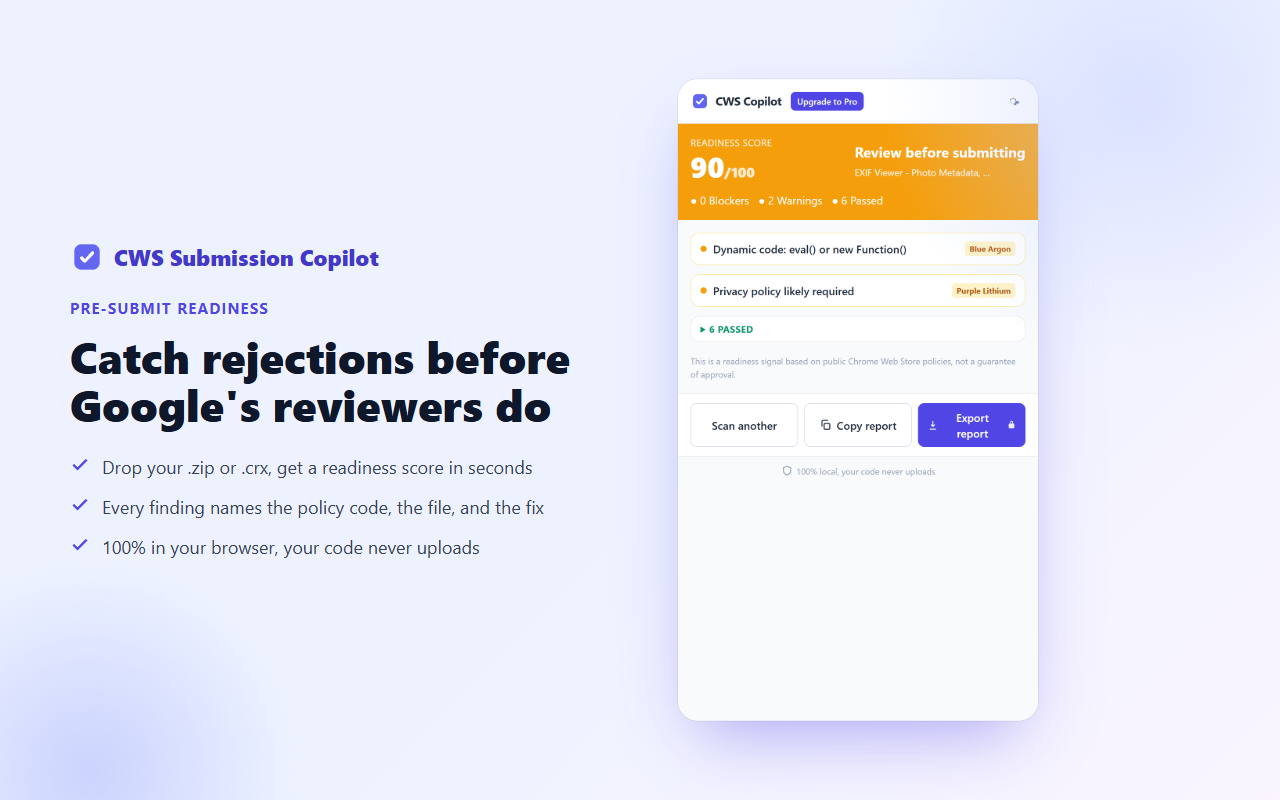
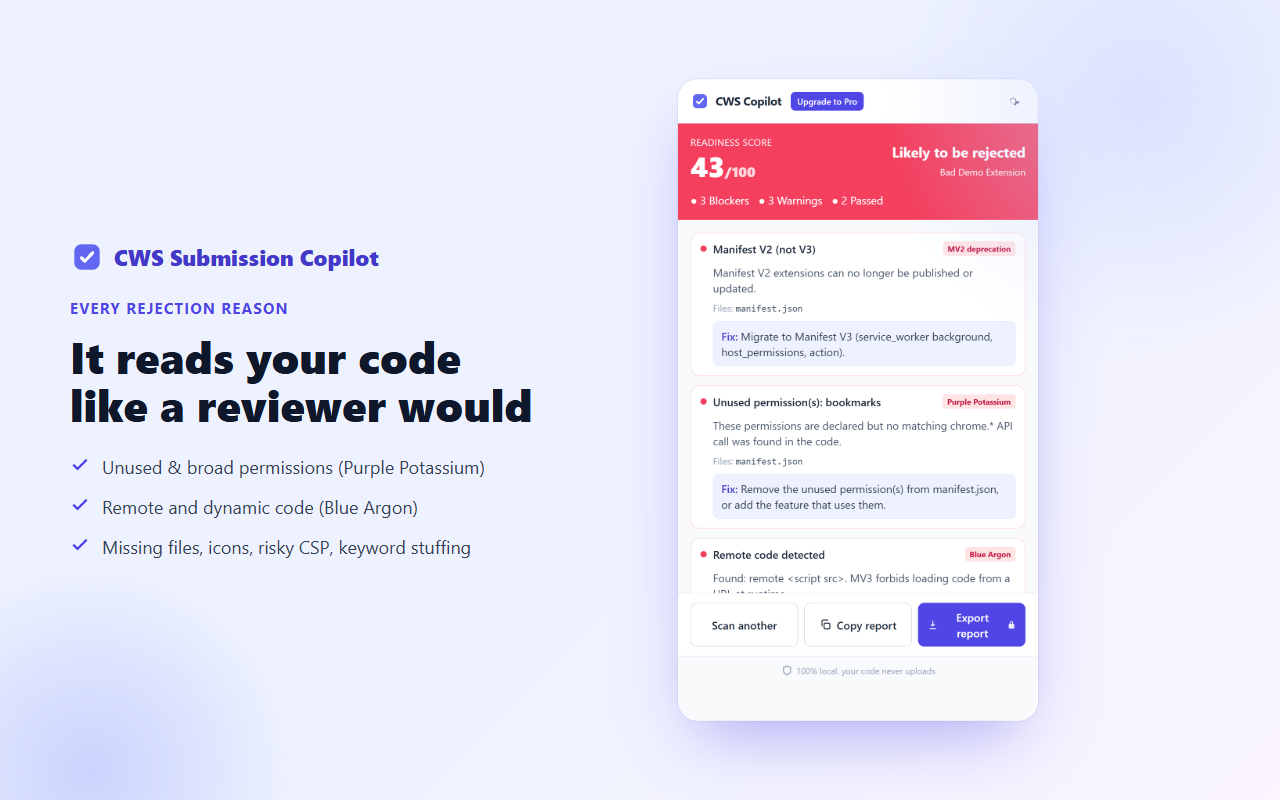
CWS Submission Copilot scan report showing policy code findings
100%
local analysis
0
code bytes uploaded
5
CWS policy codes named
1
appeal only under the 2025 rules

21+ days lost to vague rejection emails

The Chrome Web Store rejects extensions with opaque policy codes like "Blue Argon" or "Purple Potassium." Three rejections costs you three weeks and, since 2025, you only get one appeal per submission. CWS Submission Copilot names those codes, explains exactly what triggered each one, and tells you how to fix it before you ever submit.

Named, not vague
Findings show the actual policy code, the specific file and line, and the fix. No more guessing what "policy violation" means.
Fully local
Your extension source is unzipped and analyzed entirely in the browser tab. The code never leaves your machine.
One appeal only
Under the 2025 CWS policy, each submission gets one appeal. Make it count by fixing every blocker first.

How it works

1

Build your .zip

Run your normal build and zip your extension. No special export needed.

2

Drop it in

Open the Copilot popup and drop your .zip (or .crx). Everything unzips and analyzes in your browser.

3

Read blockers first

Critical findings appear at the top. Each one shows the policy code, the cause, and the exact fix. Patch and rescan until you get a green light.

Everything you need to ship without a rejection

๐Ÿ”

Scan and score

Full manifest, source, and listing-text analysis with an overall readiness score and a breakdown by severity: blocker, warning, or info.

๐Ÿ”’

Permission audit

Every permission is checked against what your code actually uses. Unused or overly broad permissions (Purple Potassium) flagged immediately.

๐ŸŒ

Remote-code detection

Finds CDN script tags, eval calls, and other patterns that trigger Blue Argon rejections. The most common silent killer of extensions.

๐Ÿ“

Listing-text check

Scans your title, description, and keywords for Yellow Argon (keyword stuffing) and Red Nickel (promotional words) before you paste them into the CWS dashboard.

๐Ÿ› ๏ธ

Per-finding fix guidance

Every finding links to the relevant CWS policy, shows the exact file and line, and tells you precisely what to change.

๐Ÿ“‹

Copy report

Export the full scan as plain text or Markdown. Paste into your team chat or ticket tracker with one click.

โšก

Step-by-step fixes Pro

Guided remediation flow with before/after code snippets, so even complex fixes take minutes not hours.

โœ๏ธ

Listing optimizer Pro

Rewrites your title and description to maximize keyword relevance without triggering Yellow Argon or Red Nickel.

๐Ÿ—‚๏ธ

Scan history and batch Pro

Track readiness scores across versions, and scan an entire folder of extension builds in one pass.

Scan results panel showing policy code findings Permission audit and remote-code detection view

Policy codes it catches

CWS rejection emails use internal codenames. Most developers never know what they mean. Copilot does.

Blue Argon

Remote code execution

CDN script tags, external JS imports, and eval-like patterns. The single most common reason for rejection in 2024-2025.

Purple Potassium

Unused or overly broad permissions

Permissions declared in manifest.json that the code never uses, or broad host patterns like <all_urls> where a narrower match would do.

Yellow Argon

Keyword stuffing in listing text

Repeating the same keyword too many times in your title or description triggers this rejection automatically. Copilot counts keyword density and flags violations before you publish.

Red Nickel

Promotional words in listing text

Words like "best," "free," "#1," "guaranteed," and similar promotional phrases are disallowed in CWS titles and descriptions.

Yellow Magnesium

Missing required files

Icons, referenced scripts, or content scripts listed in the manifest that are absent from the .zip. Copilot cross-checks every declared file against what is actually present.

Simple pricing

The full scan and all per-finding guidance are free, forever. Pro adds the power tools.

Free
$0
  • โœ“ Full scan and readiness score
  • โœ“ Permission audit
  • โœ“ Remote-code detection
  • โœ“ Listing-text check
  • โœ“ Per-finding fix guidance
  • โœ“ Copy report (text or Markdown)
Add to Chrome
PRO
Pro
$5/mo or $29/yr
  • โœฆ Everything in Free
  • โœฆ Step-by-step fix guidance with code snippets
  • โœฆ Listing and keyword optimizer
  • โœฆ Scan history across versions
  • โœฆ Batch scan a folder of builds
  • โœฆ Export report to file
Get Pro

Frequently asked questions

Does my extension source code get uploaded anywhere?

Never. Your .zip is unzipped and analyzed entirely inside your browser tab. No file, no line of code, and no manifest value ever leaves your machine.

Will it guarantee my extension gets approved?

No. CWS Submission Copilot is a readiness signal, not a guarantee. It catches the most common automated and policy-based rejection patterns, but CWS reviewers can still reject for reasons outside the tool's scope. The goal is to remove the avoidable blockers before you submit.

What is the 2025 one-appeal rule?

Since 2025, the Chrome Web Store allows only one appeal per submission. If your appeal is denied, the rejection stands and you must create a new submission (and restart the review queue). Fixing every blocker before your first submission eliminates the risk of wasting that single appeal.

Can it check listing text without a .zip?

Yes. You can paste your title, description, and keywords directly into the listing checker even before you have a build ready.

Does it work on Manifest V3 extensions?

Yes. CWS Submission Copilot supports both MV2 and MV3. Several Blue Argon and Purple Potassium patterns are MV3-specific, so newer extensions benefit the most.

What format does my package need to be in?

Standard .zip is the primary format. .crx files are also supported. This is the same .zip you would normally upload to the CWS Developer Dashboard.